Your idea.
A Glass app.
You know the web. Your AI can handle the native part. Start with a working app and build your idea from there.
Download AI starter kit · ZIPIncludes a working starter, three AI skills and English/German prompts. No account needed to download.
Open the starter in your AI editor
Extract the ZIP, then open the whole glass-app-starter folder in your coding editor. Keep the .agents folder: it contains the skills your AI will use.
Your computer needs Python and a C compiler. The AI checks what is available and explains any setup. The optional interactive simulator has its own setup.
Describe one useful task
A checklist, a reminder or a small local tool is a good first app. The prompt tells your AI which architecture, hardware and Glimmer-inspired components to use.
Read the prompt
If your AI does not discover project skills, attach AGENTS.md, the three SKILL.md files and DESIGN.md. The included START-HERE file shows where they are.
Try it, then send it for review
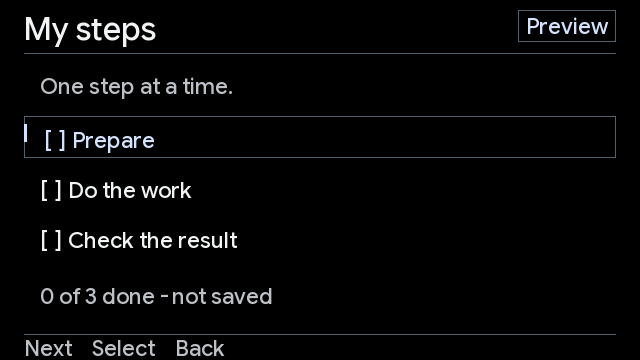
Ask your AI to show the real English and German previews and check navigation and cancellation. Describe changes until the app does what you want. Then ask it to package your app.
python3 tools/glass-app.py package my-stepsYour AI uses your app’s ID in place of my-steps. It gives you these files:
- *-source.zip
- The source package to upload. Includes code and actual preview images.
- submission.json
- The app details. In the local upload form, import this to fill the fields.
- preview-en.png / preview-de.png
- Open these images to check your app before sending it.
Choose the source ZIP, check the app details and submit. Keep the receipt. Your app waits for a person to review it; uploading alone does not publish it or install it on Glass.
What happens after uploading?
The receipt identifies the exact file you sent. Check Your submissions for review notes. If changes are requested, update the app and send a new package. After an uncertain upload result, check that list before sending again.
Different apps. One visual language.
Google’s Glimmer is our design North Star: short, glanceable tasks, dark free space, bright content and a clear focus. The kit uses our shared C99 components so every app starts with the same typography, colors and navigation.
Google’s Glimmer design guidance ↗
What environment does the AI target?
Google Glass Explorer, a 640 × 360 interface and our native Linux/C99 environment. The device build context is ARMv7 hard-float with musl. Glimmer guides the design; the Android XR Compose library is not the runtime used here. The starter runs locally; device installation and real optical readability need separate qualification.
Start with the local template. Camera, audio and network use platform services and need an explicit integration. Checking a capability in Store metadata does not activate hardware.
Stuck on a step?
Do I need to learn C first?
No. Tell your AI what the app should do and review the results. The included skills make it use the native starter. You can still inspect and change all source code.
The AI says Python or cc is missing
On macOS the Xcode Command Line Tools provide cc; on Linux use the usual C build tools. On Windows use WSL for this starter. Ask your AI for the setup matching your computer. Static previews do not need Qt or Docker.
Which file do I upload?
Choose the file ending in -source.zip from work/apps/your-app-id. Do not upload the whole starter kit, a host executable, an APK or your access file as the app package.
Where do my account details go?
Use the Store’s own account flow. In the local development portal, select your private developer access file only in the account field. Keep it outside the app folder and out of AI chats. It is not part of your package.